> For the complete documentation index, see [llms.txt](https://docs.kleos.io/llms.txt). Markdown versions of documentation pages are available by appending `.md` to page URLs; this page is available as [Markdown](https://docs.kleos.io/for-contractors-1/how-to-complete-verification-and-set-up-your-profile.md).
# How to Complete Verification and Set Up Your Profile
This section explains how to complete the first required step — “Verify and complete your profile”
After signing up and logging in, the user is redirected to the Companies screen.
The first step for Сontractors on the platform is to complete identity verification. This is a simple process that can be completed using one of the following documents: a national passport, an international passport, or a residence permit card.
## **Verification procedure**
{% stepper %}
{% step %}
### **Start the verification process**
To begin verification, click **“profile”** in the first step of onboarding, or go directly to
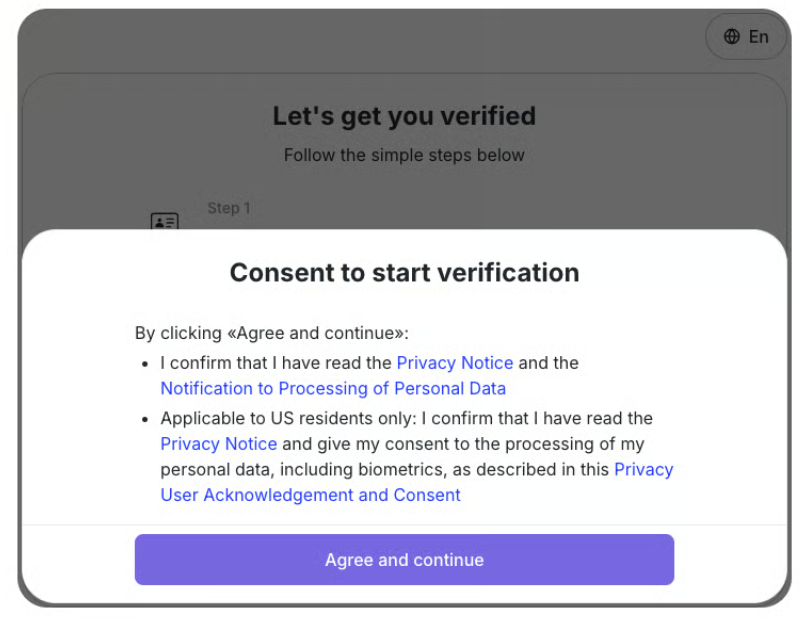
The **“Consent to start verification”** window will appear. Review the information, then click **“Agree and continue”** to proceed.
We use **Sumsub** to quickly verify your identity using your information and documents. Your data is securely protected and will not be shared with third parties.
{% endstep %}
{% step %}
### Start verification
If you have used Sumsub before, you can enter the same email address and complete verification quickly with Sumsub ID. Otherwise, prepare your identity document and be ready to complete an automated video verification process. Please note that a webcam is required for the liveness check.
{% hint style="warning" %}
If you open the verification flow on your phone using the QR code, make sure that both devices are connected to the same **Wi-Fi** network and that **VPN is turned off** on both devices.
{% endhint %}
{% endstep %}
{% step %}
### **Upload documents**
Next, you will need to submit the information required for document verification. You can continue the verification process either through your computer browser or on your smartphone. Then, choose the appropriate document type and upload the photos. Complete each step by clicking **“Continue”**
{% endstep %}
{% step %}
### **Complete verification**
After you upload your documents and complete the liveness check, you will see a confirmation that your account has been verified.
Once **KYC** is completed successfully, the verified information is automatically added to your profile and becomes **read-only**, so it cannot be edited manually.
Click **“Proceed to tax details”** to continue to the next step.
{% endstep %}
{% endstepper %}
## **Fill in your tax information**
To withdraw funds, you need to provide your country of residence and tax status.
{% hint style="warning" %}
Please make sure all information is accurate. Otherwise, you will not be able to withdraw funds
{% endhint %}
{% stepper %}
{% step %}
### Tax data
Enter your country of residence, tax status, tax ID number, and any other information required for your location.
{% endstep %}
{% step %}
### Address and phone
Enter the address details for your **Individual Enterpreneur** if you are registering as a **Individual Enterpreneur**, or your **personal residential address** if you are registering as an **individual**. Once all fields are completed, click **“Save”**
{% endstep %}
{% step %}
### Complete your profile
Once you have successfully completed the required information, you will see a confirmation message. If your company has not invited you yet and is not registered on the platform, click **“Invite a company”** to move on to the next step. For more details, see [How to Accept an Invitation from a Company or Invite a Company](/for-contractors-1/how-to-accept-an-invitation-from-a-company-or-invite-a-company.md)
{% endstep %}
{% endstepper %}
When you open your profile, you may see a green checkmark showing that your profile is now verified.
The **Companies** page will also show that the first step of onboarding has been completed successfully.